
Cloud Backup Supervision with Acronis Cyber Backup
Acronis Cyber Backup · Acronis Cyber Protect Cloud · MIDRANGE GROUP
Context
At MIDRANGE GROUP (a French IT services / MSP firm), within the Operations team alongside the team's systems & network administrator, I owned the daily monitoring of cloud and local backups for a managed client. The backup infrastructure relied on two distinct Acronis products: Acronis Cyber Backup (local/NAS backup solution) and Acronis Cyber Protect Cloud (MSP-oriented cloud backup platform). My mandate: check the Acronis dashboard daily, triage active alerts, and restore backup continuity on every failure detected.
Technical challenges
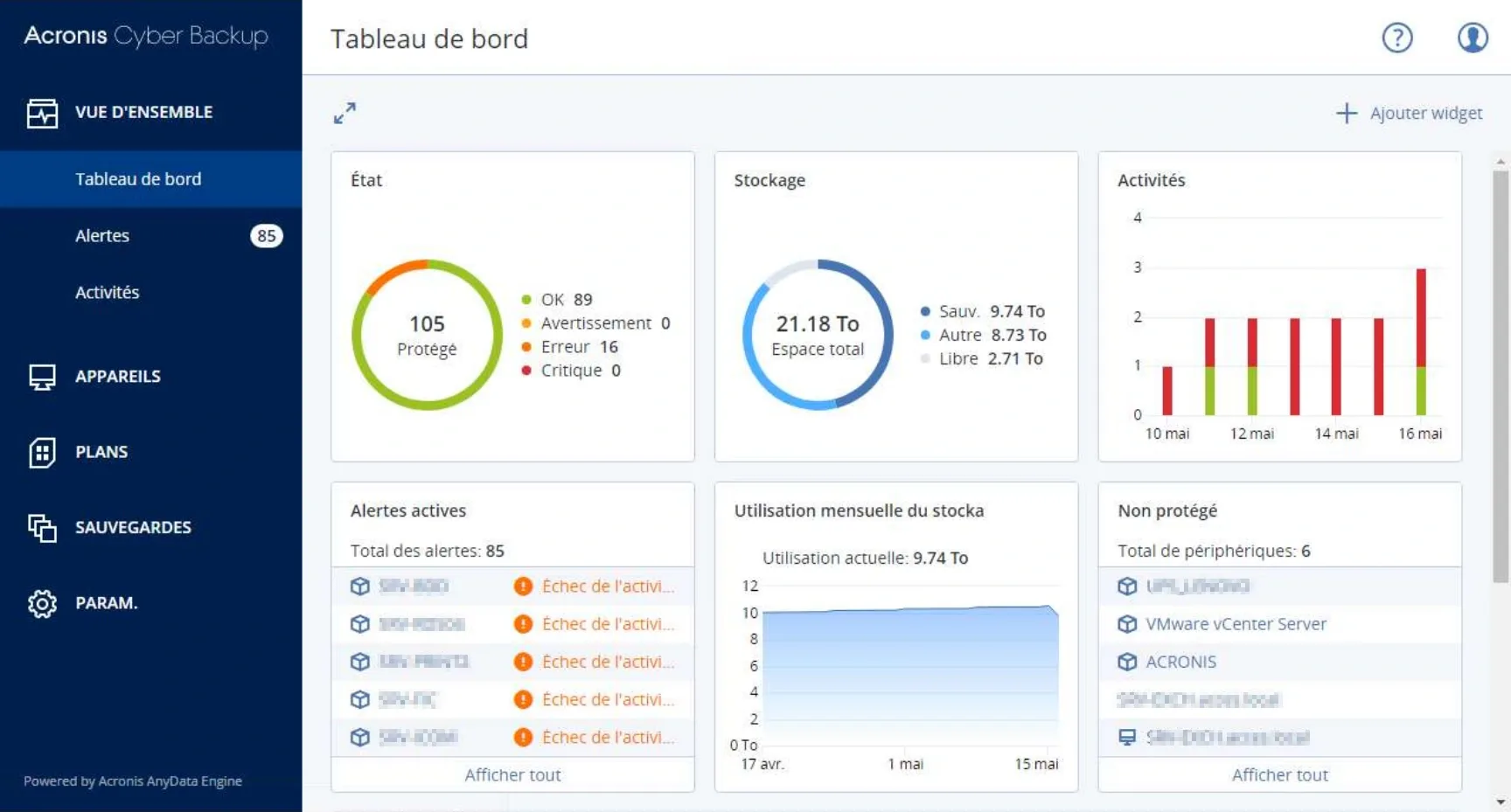
- 85 active alerts across 105 protected devices meant triage had to be systematic — treating every alert as equally urgent would have buried the handful that actually risked data loss.
- The same symptom (a red 'failure' status) could come from four unrelated root causes — a full NAS, an offline server, a corrupted backup plan, or a network fault — so the fix had to match the actual cause, not just the alert label.
- Recreating a corrupted backup plan meant preserving the exact same policy (schedule, retention, destination) under a new name, without silently changing retention windows or destinations the client was relying on.
- Two on-premises NAS destinations were both approaching their 10.5 Tio capacity ceiling at the same time, so freeing space on one without checking the other would only have delayed the same failure.
- Diagnosing a failure often required remote access to the client's own servers (via Datto RMM / Splashtop) rather than relying on the Acronis console alone, since some root causes (an unplugged server, a saturated network link) are only visible from the machine itself.
Backup Infrastructure
- Local backup tool
- Acronis Cyber Backup (NAS / private cloud)
- Cloud backup tool
- Acronis Cyber Protect Cloud (Acronis-hosted)
- NAS destination 1
- smb://nas-client/backups — 8.77 Tio / 10.5 Tio
- NAS destination 2
- smb://nas-client/backups-new — 9.57 Tio / 10.5 Tio
- Cloud destination
- Acronis cloud — 139 Gio / 250 Gio
- Protected devices
- 105 total (89 OK, 16 errors, 0 critical)
- Unprotected devices
- 6 (UPS-01, VMware vCenter Server, ACRONIS, SRV-MAIL-01)
- Total storage used
- 9.74 Tio backup / 21.18 Tio total
Backup Plans
The client had 5 active backup plans configured in Acronis Cyber Backup: 'Toutes les VM' (all VMs — 16 devices including SRV-RDS-01, SRV-DB-01, SRV-PRINT-01 and 13 others — scheduled Mon–Sat at 23:00, destination: smb backups-new, retention: 2 months monthly / 4 weeks weekly / 6 days daily); 'TMP-BDD' (1 device); 'SQL-CLOUD 2' (86 devices, Mon–Fri at 23:00); 'SQL-CLOUD' (86 devices); 'Bases_Exchange' (2 devices, daily at 03:00).
Alert Investigation & Resolution
The dashboard showed 85 active alerts: 33 activity failures and 52 warnings. I investigated each case to identify the root cause and apply the appropriate fix. The most common failure scenarios encountered were: (1) NAS storage full at 75%+ — requiring deletion of old full backups to free capacity; (2) server offline or unplugged at backup time — resolved by rescheduling or confirming server availability; (3) corrupted backup plan — requiring recreation of the plan under a new name (same base name + incremented suffix) while keeping the same backup policy; (4) network issue (defective cable or saturated NAS) — causing transfer failures mid-backup.
How I triaged an alert — step by step
- 1Step 1 — Daily dashboard reviewEvery morning, I opened the Acronis dashboard to note the number of active alerts and the split between errors and warnings.
- 2Step 2 — Root-cause check per alertFor each alert, I inspected the affected device or backup plan to determine which of the four common failure patterns applied: NAS full, server offline, corrupted plan, or network issue.
- 3Step 3 — Fix applied at the sourceDepending on the case: freed NAS capacity by purging obsolete full backups, confirmed server availability, or recreated a corrupted plan under a new name with the same policy.
- 4Step 4 — Continuity verifiedI waited for or triggered the next scheduled run on the affected plan to confirm the alert had actually cleared before closing it out.
Example Alerts (from dashboard)
- SRV-RDS-01 warning
- VM backup succeeded with warning: CBT disabled — backup ran without Changed Block Tracking (VMware snapshots present)
- SRV-DB-01 error
- Replication failed — client cloud account storage quota exceeded, new backups will fail
- SQL-CLOUD 2 plan
- 86 devices backed up, Bases_Exchange plan shows red (failure) — investigated network/NAS saturation
Impact
Backup continuity restored across all 105 protected endpoints, with no data loss and no recurring manual intervention once root causes were fixed.
Outcomes
- Daily monitoring
- Systematic review of backup health across 100+ devices every morning
- Failure resolution
- Root-cause analysis of 85 alerts — storage, network, server availability, and plan corruption
- Plan management
- Corrupted backup plans recreated without data loss, continuity restored
- Storage management
- NAS capacity freed by purging obsolete full backups, preventing future failures
- Skills
- Acronis Cyber Backup, Acronis Cyber Protect Cloud, backup plan management, NAS storage, alert triage
Best Practices
- Always confirm which of the recurring failure patterns (NAS full, server offline, corrupted plan, network issue) applies before acting — the same red status can hide four different fixes, and guessing wrong wastes a backup cycle.
- When a plan is corrupted, recreate it under an incremented name with the identical policy rather than starting from a blank configuration — this avoids silently changing retention or destinations the client is relying on.
- Check both NAS destinations' remaining capacity together, not just the one that raised the alert — if both are near their ceiling, freeing space on one only delays the same failure on the other.
- Use remote access (Datto RMM / Splashtop) to check the physical/network state of a server before assuming the backup software itself is at fault — an unplugged cable produces the same red status as a corrupted plan.
- Clear a warning only after confirming the next scheduled run actually completes clean — a status that looks fixed on paper can still fail again if the underlying cause (like a saturated link) wasn't fully resolved.
Known Limitations & Decisions
- This mandate was reactive by design: I triaged and fixed alerts already raised on the dashboard rather than redesigning the backup architecture (retention policy, NAS sizing) itself — that scoping decision belonged to the Exploitation team lead.
- Freeing NAS capacity by purging old full backups reduces the retention window for that period; it was the fastest fix for an active failure, with the trade-off accepted by the team rather than left undocumented.
- A backup plan showing 'CBT disabled' (Changed Block Tracking) still completed successfully — I treated it as a warning to monitor rather than an active failure, since forcing a full VMware re-scan mid-cycle would have cost more backup time than it saved.
- Root-cause categories (NAS full, server offline, corrupted plan, network issue) covered every alert seen during this engagement, but they are not an exhaustive list for Acronis Cyber Backup in general — a different client environment could surface failure modes outside these four.
Tools & references
Screenshots